Give each folder
its own pane.
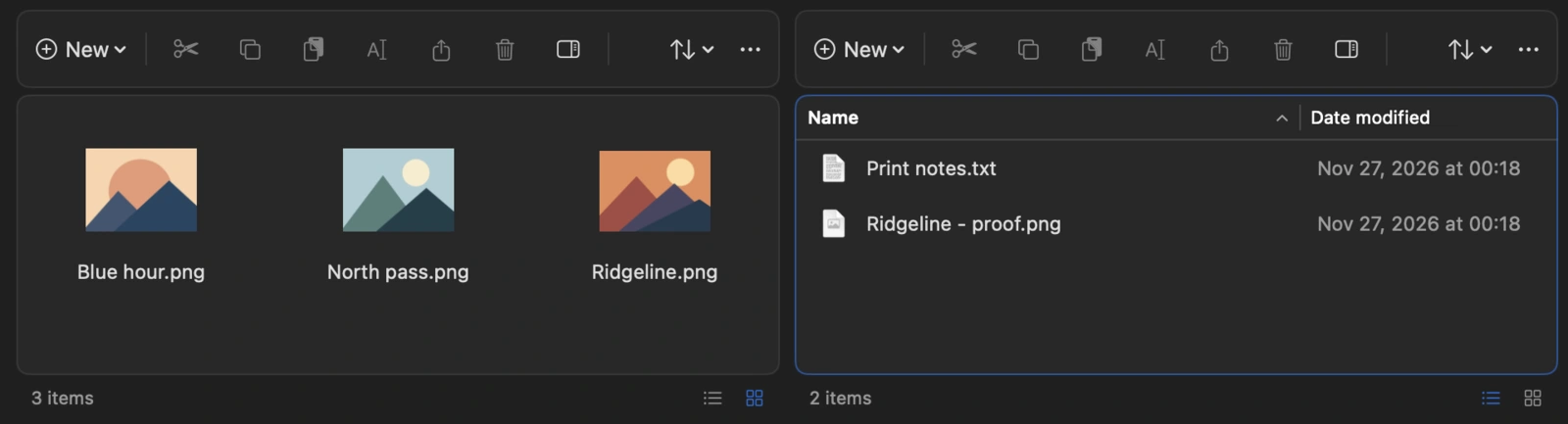
Keep your artwork on the left and your print exports on the right. Each pane can use its own layout. Compare an original with its proof, then drag the next file across.
ArtworkPrint exports
 Folders
Browse two folders side by side, preview your artwork, and paste a path to jump straight to a project. All in one native macOS window.
Download for Mac Requires macOS 14 or later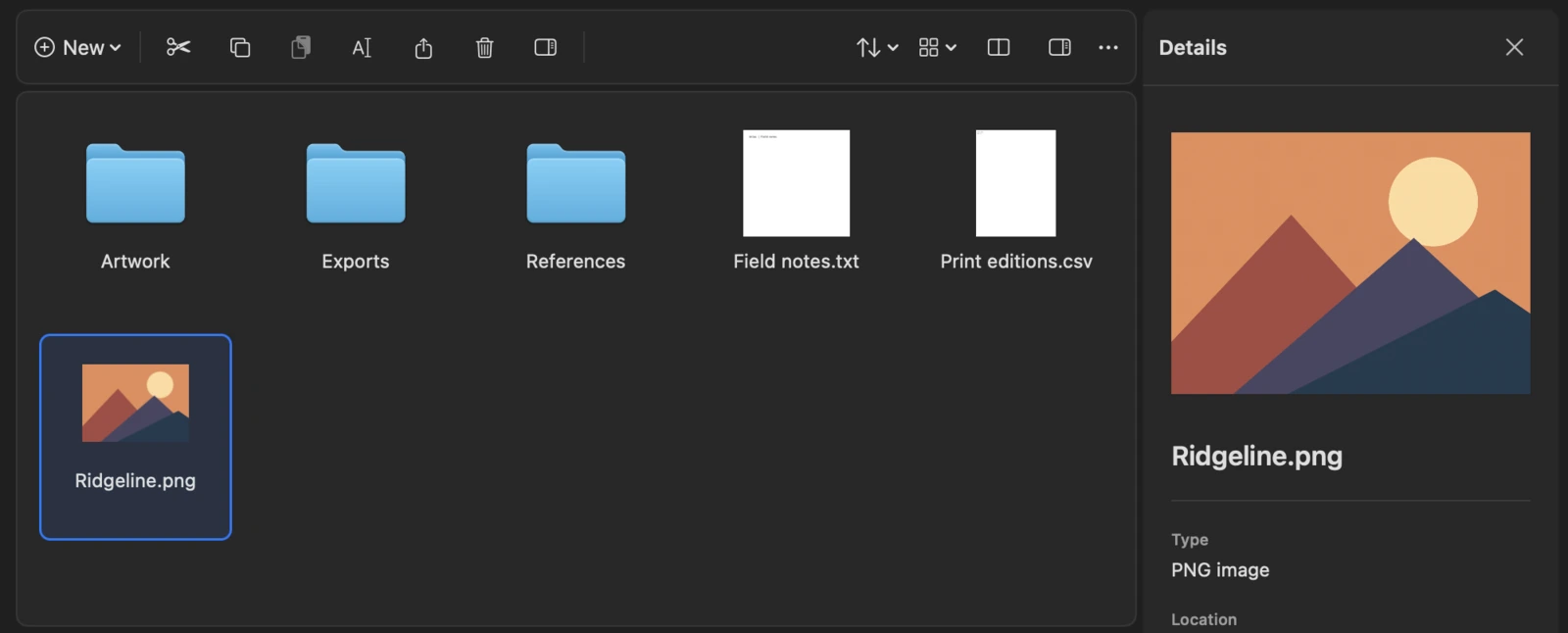
Keep your artwork on the left and your print exports on the right. Each pane can use its own layout. Compare an original with its proof, then drag the next file across.
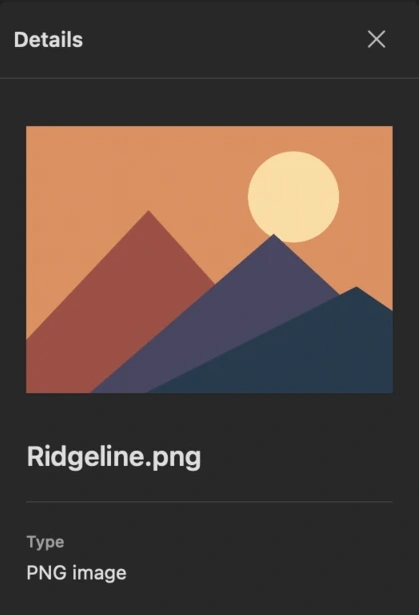
Select an image to see a larger preview in the Details pane while its neighbors stay in view. For 3D assets, Folders can also preview supported OBJ and FBX meshes.
Need a closer look? Press Space on an image for a separate preview. Press it again to return to the folder.
Keep the Mac traffic lights or choose Windows-style window controls. Pick the toolbar actions you use most and a folder icon that stands out in your Dock.
Default Dark
 Clear
 Tinted
Click the empty part of the address bar or press ⌘ L to select the path. Paste a folder path or a Folders folder link, then press Return.
Use Esc to return to the breadcrumbs. Click any parent folder to move back up the path.